
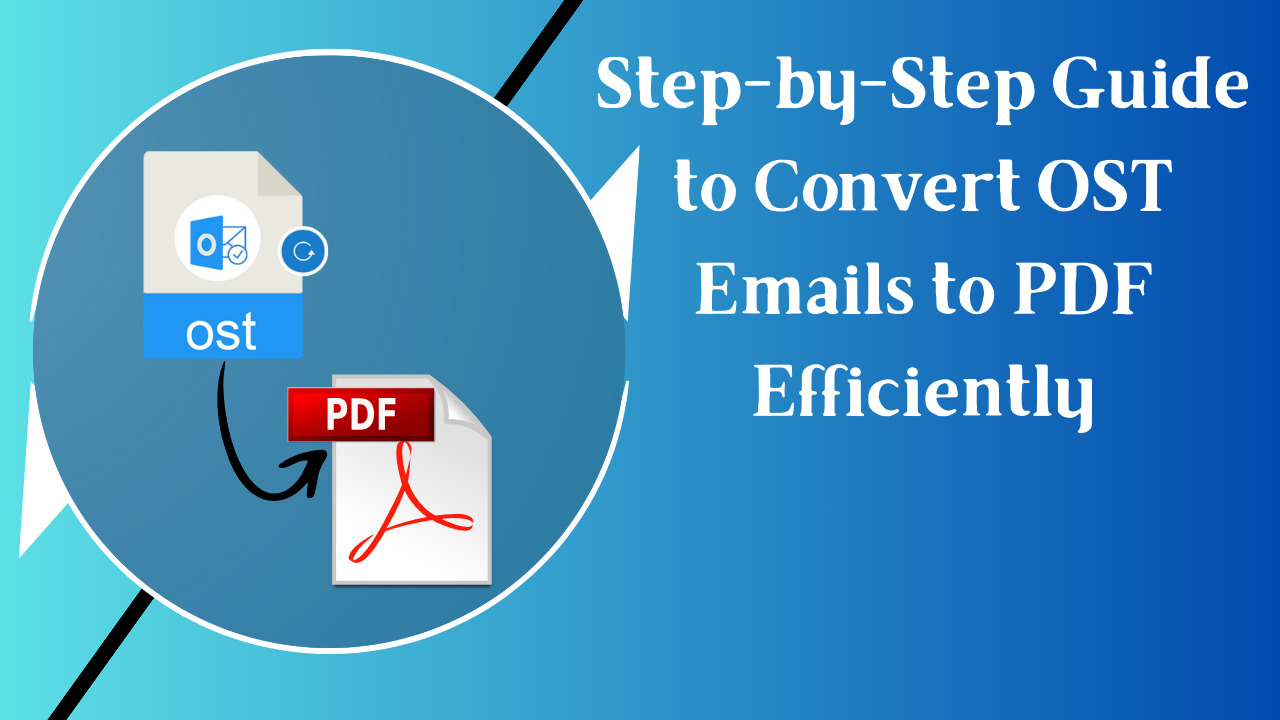
Microsoft Outlook is widely used for managing emails, contacts, calendars, and other mailbox data. Outlook saves mailbox data on the computer in OST (Offline Storage Table) files. These files are linked to a certain Outlook profile and Exchange account. Because of this dependency, it is hard to access OST emails outside of Outlook or share them with other users. To get around this problem, a lot of users like to convert their OST emails to PDF format.
PDF is a safe and widely used document format that can be opened on almost any device without needing extra software. This guide will show you different ways to export OST emails to PDF without losing the formatting or attachments.
Reasons to Export OST Emails to PDF
There are times when users need to convert OST emails to PDF. Some common reasons are:
- Universal access: Users can open PDF files on Windows, Mac, and mobile devices without Outlook.
- Data security: Password-protect PDFs so that only people with the password can open them.
- Legal Documents: PDF is a good format for audits, legal matters, and making sure you comply with regulations.
- Offline access: You can view emails saved as PDF without an email client.
- Easy to organize: You can save, rename, and sort PDF files so you can find them later.
- Formatting preserved: The layout, font, and structure of the original email remain the same.
Method 1: Use the Print Option to Convert OST Emails into PDFs
If users only need to convert a few emails, this method works well. But it takes a long time to convert a lot of files at once.
Steps:
- On your computer, open Microsoft Outlook.
- Open the folder that has the emails you want to export.
- Click on File after opening an email.
- Pick Print and then Microsoft Print to PDF.
- Press Print, pick a place to save the file, and then click Save.
Limitation:
This method only converts one email at a time and doesn't work well with attachments or large mailboxes.
Manual Method 2: Save OST Emails as HTML and Convert to PDF
Another way to do it by manual method is to save emails as HTML files and then use a browser to convert them into PDFs.
Steps:
- Open Outlook and choose the email you want to read.
- Select HTML format from the File menu and then click Save As.
- Keep the email on your computer.
- In a web browser, open the HTML file you saved.
- To make a PDF file, use the Print to PDF option in your browser.
Limitation:
Attachments don't automatically get added, and it gets complicated when there are a lot of emails.
Professional Solution to Convert OST Emails to PDF
Many users use Toolsbaer for OST to PDF Conversion to safely and accurately convert OST emails because manual methods have their limits. This solution lets users convert emails and their attachments while keeping the original folder structure.
Steps to Convert OST to PDF
- Start the software on your computer.
- Add the OST file that has the mailbox information.
- Look at the emails and choose the folders you need.
- Pick PDF as the format to export to.
- Choose where you want to send the file and start the conversion.
The process is quick and helps keep emails safe without any work on your part.
Final Thoughts
Converting OST emails to PDF is a good way to keep important email data safe, share it easily, and keep access to it for a long time. Manual methods may work for a small number of emails, but they don't work for a lot of emails or attachments. Using a dedicated solution makes the process easier and guarantees perfect results. Users can easily convert OST emails to PDF format without losing any data by following the above steps.